
3.0 Beneficiary Registration and Data Import
HOPE User Manual

This section covers the tools for uploading beneficiary data and the Registration Data Import module in HOPE. There are two methods supported by HOPE for registering beneficiary data and two methods to
import such data:Registration
a) Beneficiary registration using KOBO Toolbox on UNICEF cloud instance – Available in online and offline settings
b) Aurora available in online settings Import
a) Import data directly from Kobo and Aurora
b) Import data from an excel sheet
c) Import data through API
Beneficiary Registration with KOBO
KoBo is a digital data collection tool that allows creation of customization of registration forms and easy collation of data for reporting and programmatic use. It consists of two components:
1. KoBo Toolbox which is a web application
2. KoBo Collect which is mobile application (for Android)
Why use KOBO?
a) Digital Data Collection: Cleaner, more reliable data; all collection lists automatically collated.
b) Wide Adoption: KoBo is already used across the humanitarian sector, including by many of UNICEF’s partners.
c) Pathway to HOPE MIS: Using standardized data collection forms in KoBo will make data usable later for UNICEF HOPE.
Getting Started with KoBo Toolbox and Sync with KoBo Server
The following steps will explain how to create a KoBo account:
1. Request for a Kobo Account.
a) Ask your HOPE focal point for external users to be added to the UNICEF active directory.
b) Have your HOPE focal point create the KoBo user accounts in Django.
c) Activate your account by clicking the link in the e-mail account that you reported.
d) Once you have created your account, communicate your username to the relevant UNICEF project manager or focal point to be granted access to the Kobo forms.
2. Setting up KoBo Collect on Your Android Phone or Tablet
a) Go to the Google Play Appstore and download the KoBo Collect application
b) Launch the application
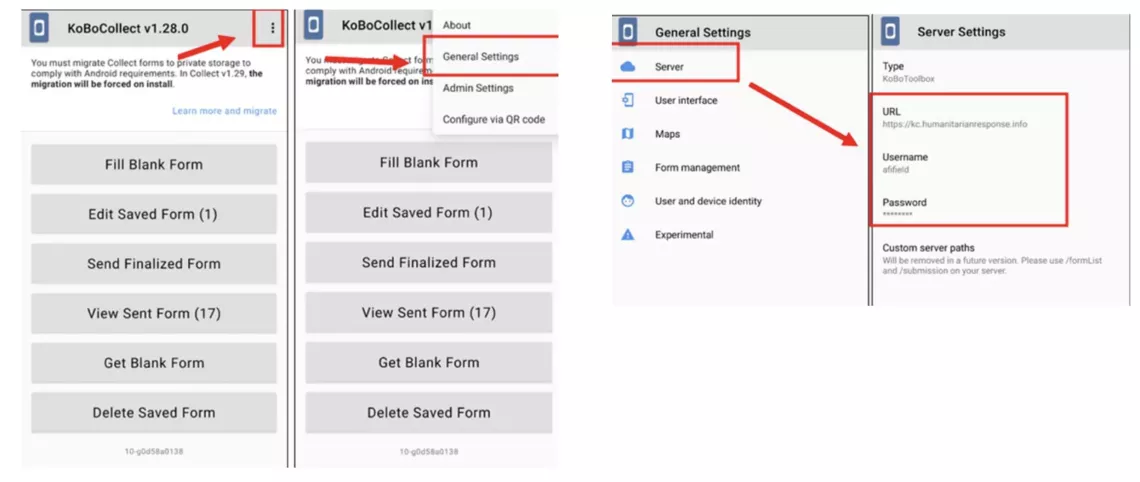
c) Once inside the application, click on the three dots on the upper right-hand side of the screen. This will
open your settings menu. From the settings menu, select “General Settings”
d) In “General Settings,” tap on the button titled “Server”
e) In the “Server” settings, type in:
- URL: https://kc.hope.unicef.org/
- Username: enumerator username
- Password: enumerator password
3. Downloading Surveys to Your Device
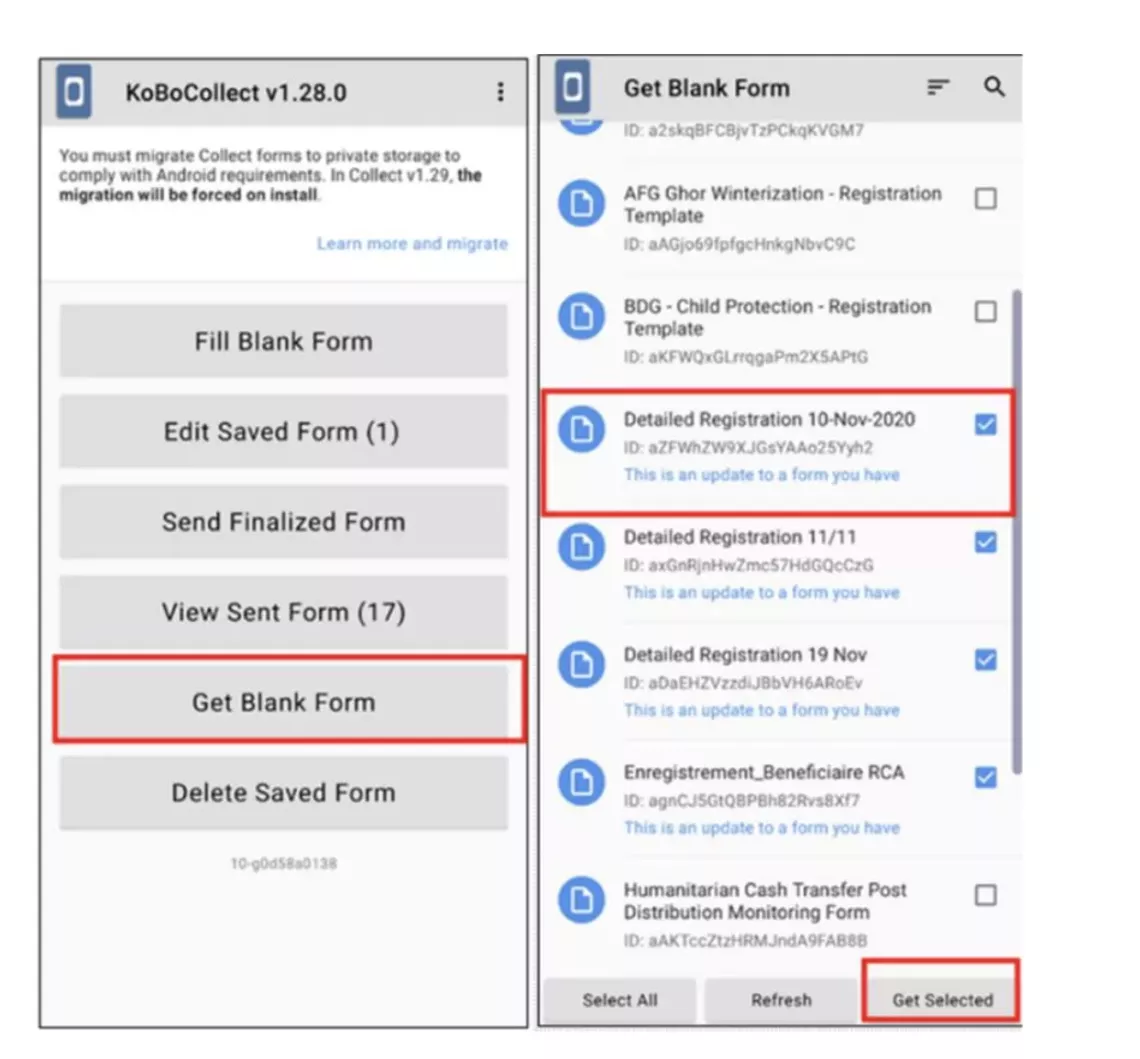
a) Tap on “Get Blank Form”.
b) A list of forms will appear. You may only have one form in your list. Make sure the checkbox to the right of the form title is checked, then tap the “Get Selected” button on the bottom right. You will get a message confirming that the download of the form was successful.
4. Filling out Surveys
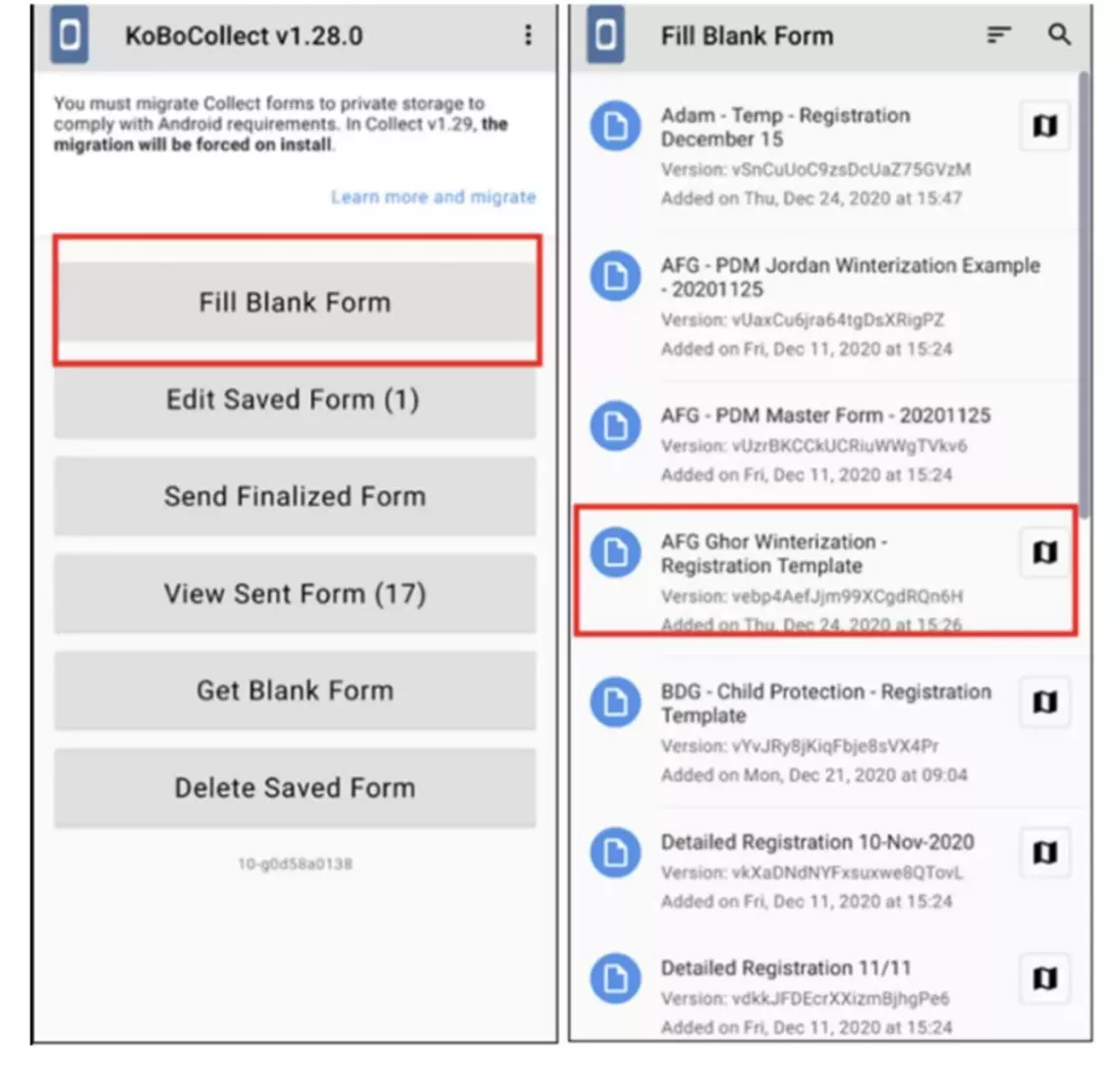
a) On the home screen of the application, tap “Fill Blank Form”
b) Your list of forms will appear. Tap on a form’s title to enter the form and begin filling it out.
5. Changing Languages in a Form
While inside a form, you can select a different language by:
a) Selecting the three dots on the upper right-hand side of the screen.
b) Tapping “Change Language”.

6. Uploading Finalized Forms
a) To submit finalized forms, tap on “Send Finalized Form” on the home screen.
b) A list of the survey submissions which you have made will appear on the screen.

Overview of the Registration Data Import (RDI) Module
The Registration Data Import (RDI) module allows import of beneficiary data collected by KoBoToolbox or shared by partners. Currently one can import data sourced from Excel or directly from KoBo registration forms. Moreover, you can download a template from RDI section within HOPE in the event you have receive data from an external source which requires formatting and adjustment prior to import into HOPE.
Why is RDI Important?
RDI is the first step that a project team needs to perform in HOPE to ensure adequate, accurate and up-todate beneficiary data. Additionally, it allows for importing data from external data sources in a secure manner. For example, in the RDI module you can import individual and household data provided by an implementing partner (such as an NGO) or received as an export from another entity’s system such as a national registry or sister UN agency’s MIS.
What do I need to do before importing data?
Ensure the following when selecting file to import:
- User has a excel file or Kobo file to upload.
- Download the import template from the RDI module in the event the data is not already in the correct format.
How Do I Download a Template?
1. Select the respective Programme and go to the Registration Data Import module and click import on the top right, a window will appear to select file to import
2. Click to download a template in the event you have data from a third party.

3. This is the template provided when you select download.

RDI XLS Forms
Ensure you have filled out the template correctly, focusing on the required core fields in the excel template.Without filling the required core fields, you will not be able to run a Registration Data Import.Additionally, ensure you have sufficient information as this will define how you are able to conduct a Target
Population of beneficiaries.
HOPE and KoBo Workflow
The below chart illustrates the HOPE and KoBo workflow. The HOPE team at HQ-level manages the master template of the XLS form which lives in HOPE. Country offices can request edits of the form to HQ Admin for changes, adding of flexible fields, choices, and other logic.
The XLS template is shared with a Country Admin who prepares a KoBo project which is then shared with enumerators for data collection.
For more information on KoBo workflow click here.
Deduplication
The deduplication process identifies individual who are registered more than once in HOPE. The implications to UNICEF of having de-duplication capabilities in HOPE include:
- Providing greater accountability to beneficiaries by mitigating both intentional and unintentional duplicate records.
- Contributing to greater coverage of UNICEF’s programmes.
- Elimination of “double dipping”.
Reduction in required storage space and increased processing speed.
After beneficiary data is imported into HOPE, two deduplication summaries will be portrayed:
a) A breakdown of the number of unique and duplicate individuals for the registration batch, and,b) A breakdown of the number of unique, duplicate, and potential duplicate individuals against the golden record (existing master list) of HOPE beneficiaries.
Each individual record is given a “matching score” which designates the degree of similarity between that new individual’s data and data that is already present in the golden record database. Individuals with a matching score below a minimum threshold are classified as “unique”; those with a matching score above a maximum threshold are classified as “duplicate” and the individuals with matching scores between the minimum and maximum thresholds are classified as “pending adjudication.” These thresholds can be customized at country-level for optimal results. Deduplication is performed on individual-level data, including individuals whose role is head of household.Deduplication can have the following outcomes:
- Unique Individuals: Individuals that the deduplication function in HOPE has determined as having unique characteristics that do not match with any other individual within the biometric database. The list also includes individuals marked as unique because of the manual adjudication process in the Grievances and Feedback module.
- Duplicated Individuals: Individuals that HOPE has determined to have one or more duplicate individuals in the HOPE database, based upon having a fuzzy matching score which is above the predetermined match threshold and (ii) individuals that relevant staff have adjudicated as duplicate after the manual review process.
- Needs Adjudication: The manual process that allows for the resolution of potential duplicates. Questionable matching results such as potential duplicate(s) are flagged and forwarded to relevant staff members for manual adjudication via a ticket in the Grievances and Feedback module in HOPE. Manual adjudication is a necessary follow-on step after automated deduplication has occurred.
- Individuals Pending Adjudication: Individuals that HOPE could not definitively determine to be either unique or having one or more duplicates within the golden record database. When HOPE determines that an individual is pending adjudication (due to the matching score being within the minimum and maximum thresholds), a ticket is automatically created in the Grievances and Feedback Module in HOPE. These individuals then need to be manually adjudicated by staff using the Grievances and Feedback Module. The procedure for manual adjudication may vary from operation to operation.
Presumption of Unique Record
HOPE will allow import of all beneficiaries who have been marked as “Needs Adjudication” until completion of the adjudication process resulting in a decision as to whether the beneficiary is unique or duplicatedthrough the Grievance and Feedback Module.
Click here for more information on deduplication process in HOPE.
How to import data through the RDI module
1. Log in to HOPE, select the Programme and then click on “Registration Data Import” tab in the legend.

2. Select “Import” on the top right. Upon selection a window will appear for you to select a file to Import (Excel or KoBO) and a field to fill in the title of the import.

3. Upon selecting the file to import, HOPE will scan the file to be imported and displays a summary of the household and individual information or any errors if detected. All errors need to be resolved for the file to be imported successfully. Once you fix the errors you can attempt to upload the file again.

4. Upon clicking “Import” button the import status will change to ‘IMPORT SCHEDULED’ then go to ‘IN REVIEW’, after Registration Data Import (RDI) has run, HOPE will display two deduplication summaries
below:
a) Within Batch: which is a breakdown of the number of unique and duplicate identities for the registrationbatch.
b) In Population: which is a breakdown of the number of unique, duplicate, and potential duplicate identities against the golden record of HOPE beneficiaries.

5. The results of the import process are provided after a successful import in a list view by scrolling down to the “Import Preview” section. A red triangle highlighted on the household details signals a possible duplicate record. This record needs to be reviewed and adjudicated before creating payment lists.

6. Upon completion of reviewing import details, click 'Merge'

Note the following:
i. Deduplication always happens at the individual beneficiary level.
ii. Upon completion of reviewing import details, click “merge” to finalize the import of the batch into the master HOPE database.
iii. You also have the option to reject the import by clicking on refuse import.
7. The status of the import batch will change from “IN REVIEW” to “MERGED’ once completed.
